
How to install WordPress via cPanel?
Login into cPanel
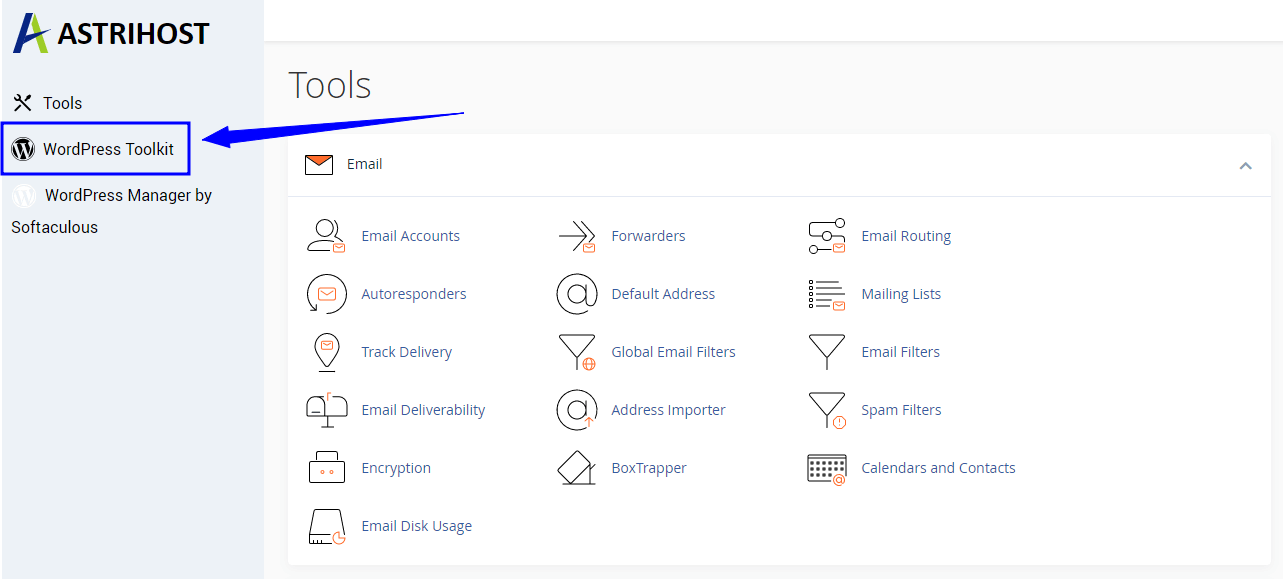
From the left-hand side menu, click on the “WordPress Toolkit” link.
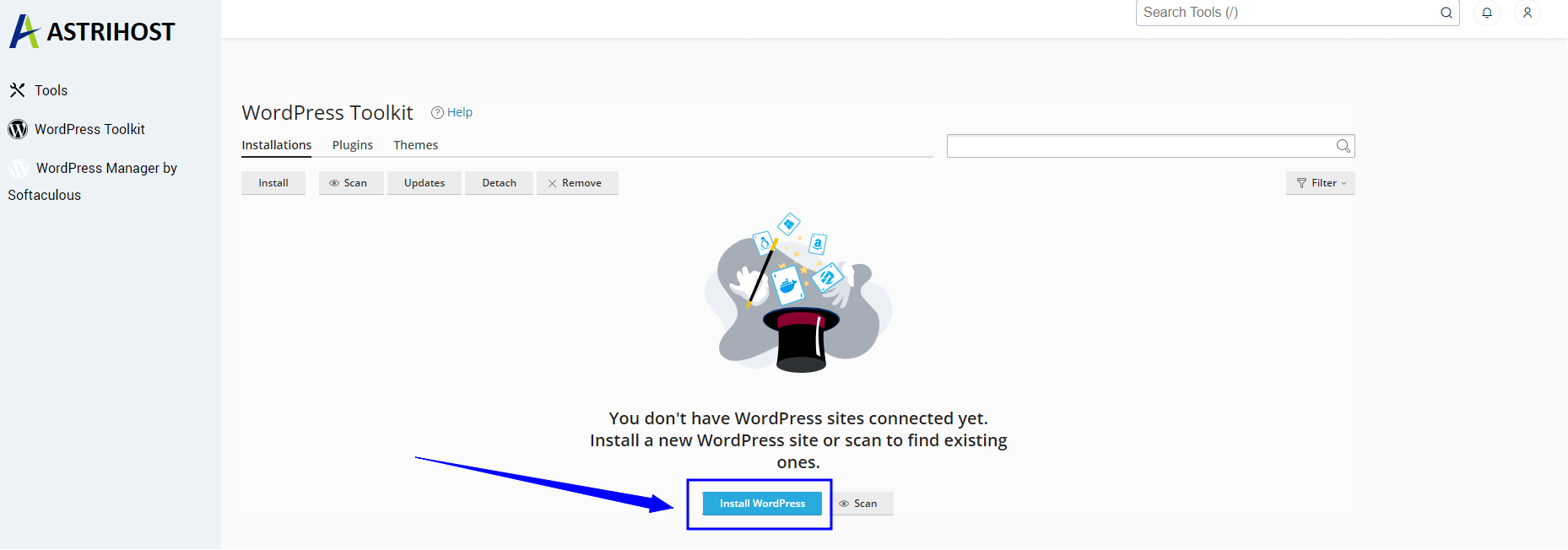
Click on the “Install WordPress” button.
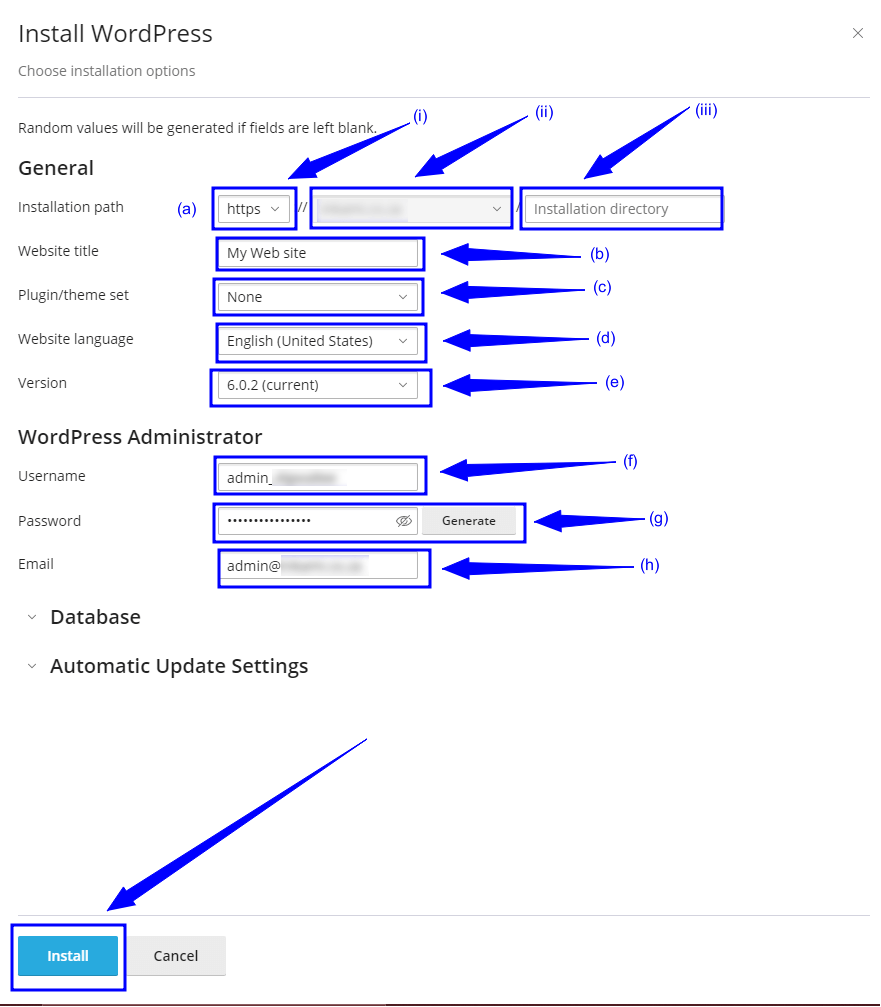
Complete the required parameter fields with your settings.
- Installation path:
- Choose Installation Protocol: HTTPS:// is recommended.
- Choose Installation URL: Choose the appropriate domain.
- Installation Directory field: Should you want to install this in a directory, i.e. yourdomain.com/directory, enter the directory name. Otherwise, leave it blank to install in your main domain, i.e. example.com
- Website title: Enter a friendly name for your website.
- Pugin/Theme set: Select a set you wish to install. These can be added after the installation is complete. For this installation, I will select None.
- Website Language: Select your preferred language.
- Version: We recommend using the default version.
- Username: Enter a username for your administration account.
- Password: Enter a strong password.
- Email: Enter an email address for your administration account.
Once completed, click the Install button.
Note: We recommend selecting Automatic Updates for WordPress, Themes and Plugins